Outreach Integration with Tendril
Customer Account
Super Admin
The next section explains the step by step process to install Outreach Integration with Tendril with a Super Admin Outreach account.
Step 1: Log in to Tendril Connect
Log in to Tendril Connect using the credentials sent to your email using the following link.
You received an email from our team sharing your credentials.
.png)
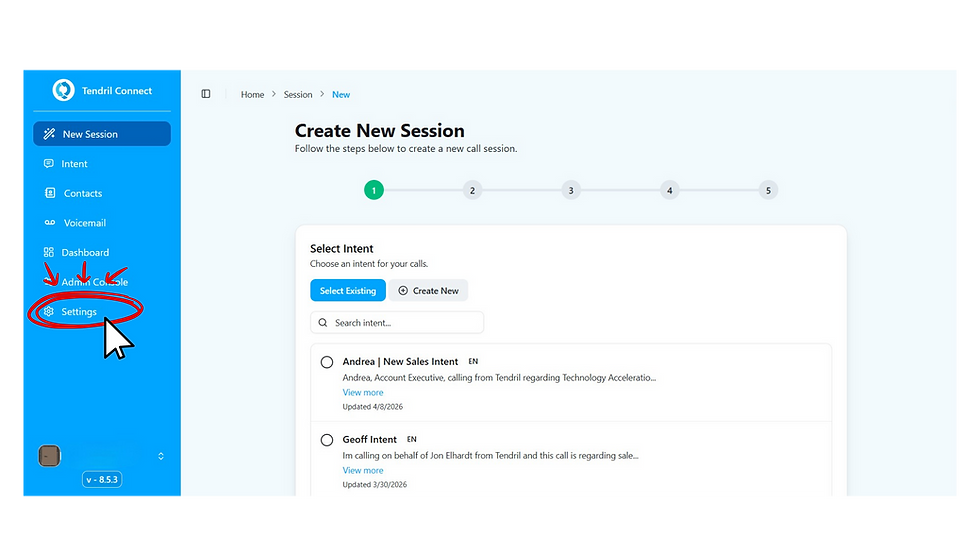
Step 2: Go to Settings
On the left menu, click on Settings
.png)
Step 3: Integrating Outreach inside Tendril
1. Select "Application" on the top bar
2. Select Outreach tab
3. Add / Manage your Outreach Account
.png)
Step 4: Sign in to your Outreach account
Use your Outreach credentials to Sign in to your Outreach account
The super admin account or email in outreach needs to be the exact email account in tendril.

Step 5: Confirm Accounts have been synched
Go to Dashboard > Integrations > Outreach
Verify that your contact list appears.
If this CONNECTION section does not appear, go back to Tendril and do a hard refresh:
MAC: ⌘ [Cmd] and [⇧ Shift] and then press R
Windows: [Ctrl] and [⇧ Shift] and then press R
And click again on the HubSpot Logo
.png)
Step 6: Verify Outreach Lists are shown in Tendril
In the Contacts Panel, select the Outreach Tab and choose a list to confirm the synchronization is showing successfully.
If this CONNECTION section does not appear, go back to Tendril and do a hard refresh:
MAC: ⌘ [Cmd] and [⇧ Shift] and then press R
Windows: [Ctrl] and [⇧ Shift] and then press R
And click again on the HubSpot Logo


Step 7: Map your custom outreach dispositions.
If you would like to have your own custom call dispositions.
Create or edit disposition mappings.
These mappings will be synched back as a result of your calls.
Now you can see all your Outreach users inside Tendril!
You have now successfully integrated your Outreach List and Mapped your own Call Dispositions with Tendril Connect!
Once the accounts are shown in Tendril, the integration between outreach and Tendril has been successfully synchronized.
If this CONNECTION section does not appear, go back to Tendril and do a hard refresh:
MAC: ⌘ [Cmd] and [⇧ Shift] and then press R
Windows: [Ctrl] and [⇧ Shift] and then press R
And click again on the HubSpot Logo